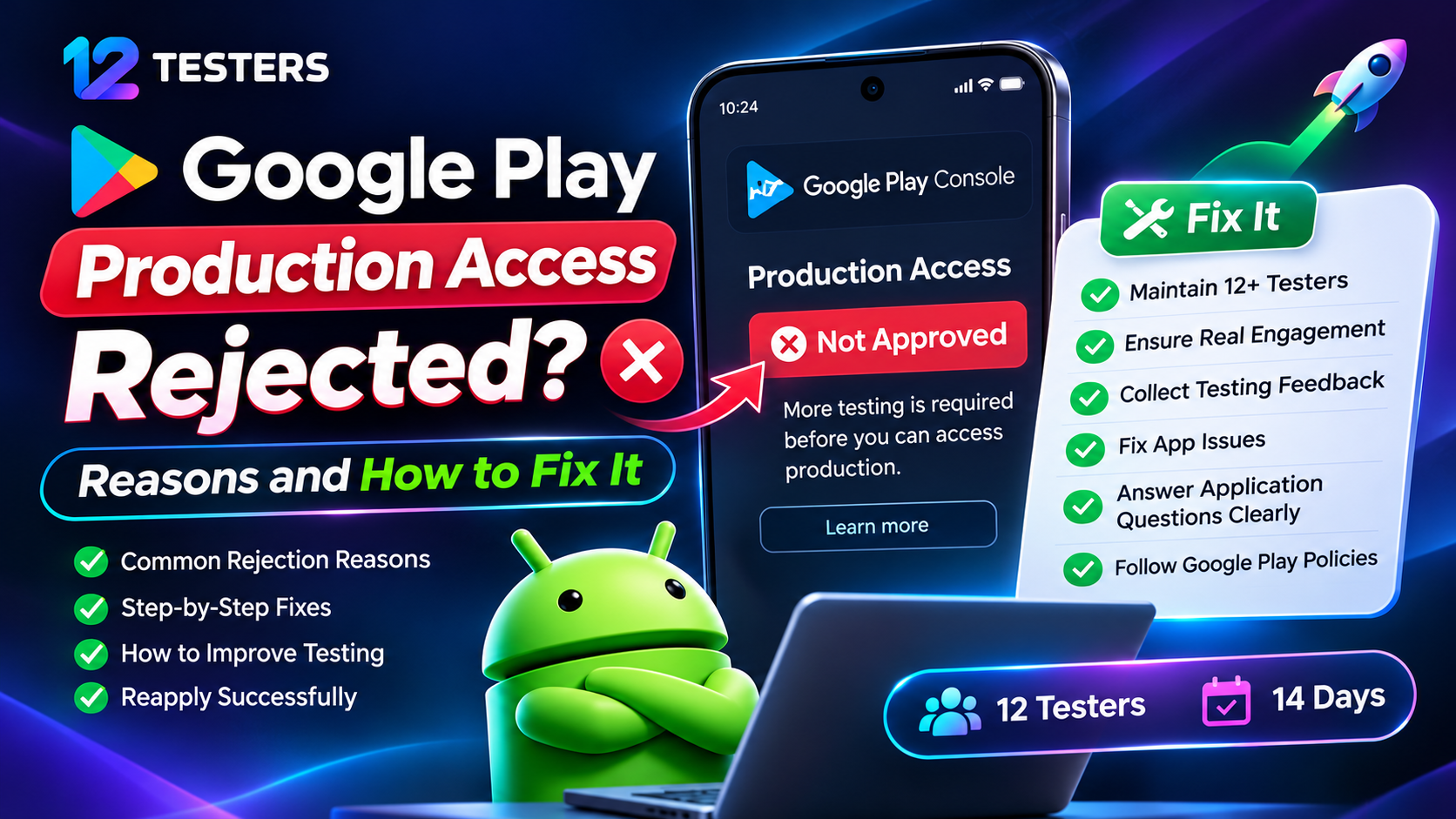
Google Play Production Access Rejected? Reasons and How to Fix It
You finished your closed test. You waited 14 days. You sent your production access application. Then Google said no. The message says your app needs more testing.
This feels bad. Many Android developers go through the same thing. You are not alone. And your app is not doomed.
Google does not approve production access just because you met the minimum. Google also looks at how your testers used the app. It reads your answers. It checks if your app is ready for real users.
This guide explains why Google rejects production access requests. It shows you how to find the cause. It gives you a clear plan to fix it. It also helps you write better answers when you apply again.
This guide fits Flutter developers, Android developers, indie app makers, and first-time Google Play publishers.
What Does "Production Access Rejected" Mean?
Production access lets you publish your app to the public on Google Play. Some newer personal developer accounts must earn it first.
Say you created your personal account after November 13, 2023. Then you must follow these steps:
Run a closed test.
Get at least 12 testers to opt in.
Keep at least 12 testers opted in for 14 days in a row.
Apply for production access in the Google Play Console.
Answer questions about your test, your app, and your production readiness.
Meeting these steps does not guarantee approval. Google reviews your test and your answers. Then it decides if your app needs more testing.
Some developers see a message like "Your app requires more testing to access Google Play production." Developers report this wording. Google's help page may use different words. So read the exact message in your own Play Console.
In most cases, this message means Google wants you to keep testing. It does not mean Google banned you. It does not mean your account is in trouble. Production stays locked until you apply again and Google says yes.
Important: This guide covers production access requests that need more testing. A policy rejection during the normal app review is a different problem. It needs a different fix.
Common Reasons Google Rejects Production Access
Google's help page names two main reasons. First, you had fewer than 12 opted-in testers. Second, your testers did not engage enough during the test. Other problems can hurt you too. This section covers them all.
Finding the real cause is the first step. Do not guess. Look at each reason below and check it against your own test.
Reason 1: Fewer Than 12 Testers Stayed Opted In
This is the most common reason. The rule is strict. When you apply, at least 12 testers must have stayed opted in for the full 14 days before that moment.
Many developers think that inviting 12 people is enough. It is not. Inviting a tester and keeping that tester opted in are two different things.
Here is an example:
You invite 15 testers.
12 of them join.
Two testers leave on day 9.
You now have only 10 testers with a full run.
In this case, you do not meet the rule. A tester who leaves and joins again starts a new 14-day period. Also, people who only joined your internal test do not count. They must leave the internal test before they can join the closed test.
How to fix it:
Open Google Play Console.
Go to your closed testing track.
Check the list of testers and their opt-in status.
Count how many testers have 14 days in a row.
Ask testers who left to come back, or add new ones.
Wait until 12 or more testers have a full 14 days again.
Aim for 15 to 20 testers. Some will drop out. Extra testers protect you from that problem.
Reason 2: Testers Opted In but Never Used the App
Some testers join the test but never install the app. Others install it and never open it again. Play Console shows these gaps. Google sees them too.
A test with 20 opt-ins and almost no installs looks weak. Google wants proof that real people used your app.
How to fix it:
Send each tester a short message with clear steps.
Ask them to install the app on day one.
Remind them to open the app every few days.
Check Play Console often to see who installed it.
Replace testers who stay silent.
Reason 3: The Release Was Never Published
This problem catches many developers. You create a closed testing track. You add your testers. But you never publish a release on that track. Testers join, but they cannot install anything.
Play Console then shows many opt-ins and almost no installs. Google reads that as a weak test.
How to fix it:
Open Play Console.
Go to Testing, then Closed testing, then Releases.
Check the release status.
Make sure it says "Available to testers."
If it says draft, in review, or rejected, fix that first.
Do this before you do anything else. A release that testers cannot install makes the rest of the test useless.
Reason 4: The Track Was Paused or Unpublished
Some developers pause the closed testing track in the middle of the test. They want to ship a fix. Or they want to take a break. This can harm the test. Reports from developers say a pause can reset the tester clock.
Do not pause the track. Do not unpublish it. If you need to fix a bug, ship the fix as a new release on the same track.
Reason 5: Group or Link Problems
Sometimes the setup stops testers from joining. Here are common causes:
Your Google Group is set to invite-only. Testers who find the link cannot join.
The opt-in link is broken or expired.
Your country settings do not cover your testers' countries.
Testers use a different Google account than the one you added.
These problems are easy to miss. You may think 20 people joined. In truth, only two could join.
How to fix it:
Open your opt-in link in a private browser window. If you see an error, your testers see it too.
Open your Google Group settings. Set it so anyone can join, or add each tester by hand.
Check the countries on your closed testing track.
Ask each tester to use the same Google account you added.
Reason 6: Weak Tester Engagement
Google lists "insufficient tester engagement" as a reason. Twelve testers do not prove your app was tested well. Google wants to see real use.
Look at two cases.
Case A:
12 testers joined.
They installed the app.
They did not explore the features.
The developer collected almost no feedback.
Case B:
12 or more testers joined.
They used the main features.
They gave feedback.
The developer read the feedback.
The developer fixed the problems.
Case B shows a real test. Case A does not.
How to fix it:
Ask your testers to do real tasks. For example, ask them to:
Explore the main features.
Try the important user flows.
Open different screens.
Spot confusing parts.
Report bugs.
Share how the app felt to use.
Send a short list of tasks every few days. Small tasks work best. Testers finish them faster. Do not count installs alone. Count real actions.
Reason 7: Poor Feedback Collection
Google asks you to summarize the feedback from your test. It also asks how you collected it. If you cannot answer, your test looks thin.
Here is what a weak process looks like:
No way to collect feedback.
No contact with testers.
No list of problems.
No record of ideas.
No sign that you used the feedback.
How to fix it:
Build a simple feedback system. You can use:
Google Forms.
A feedback email address.
A private group chat.
A task board.
A bug report form.
Ask testers to tell you which features they tried. Ask if anything broke. Ask if any screen confused them. Ask what you should improve.
Save the answers in one place. Look for problems that many testers report. Do not invent bugs. Do not write fake reviews. Honest feedback helps you more.
Reason 8: No App Improvements During the Test
Closed testing exists to find problems before launch. Suppose a tester says the sign-up screen does not work. Suppose you never look into it. You lose a chance to improve the app. You also lose proof that the test taught you something.
How to fix it:
Use this simple workflow:
Collect tester feedback.
Pick the most important problems.
Look into each one.
Fix the bugs you can confirm.
Build an updated version.
Test the new version.
Write down what you changed.
Not every idea needs a code change. But you should be able to say what you learned and why the app is ready.
Reason 9: Thin Answers in the Application
Google asks questions in three areas: your closed test, your app, and your production readiness. Short answers give Google little to judge. Look at this answer:
We tested the app with 12 testers for 14 days. Everything is working.
This tells Google almost nothing. A better answer names the features testers used. It says how you collected feedback. It lists the problems you found. It shows what you fixed. It explains why the app is ready.
Some developers say short or generic answers are a common cause of rejection. Google does not publish a minimum length. Still, detail helps.
How to fix it:
Write your answers before you open the form. Be specific. Be honest. Match your answers to what really happened. Do not copy answers from other developers. Your answers must describe your own app and your own test.
Reason 10: App Stability Problems
The test should show whether your app works for real users. If the app crashes, has broken screens, or lacks key features, it is not ready.
Here are common problems:
Login or sign-up errors.
Broken menus.
Buttons that do nothing.
App crashes.
Missing content.
Server connection failures.
Wrong permissions.
Unfinished main features.
How to fix it:
Test every main feature yourself.
Check sign-up and login.
Check server requests.
Move through all the screens.
Read your crash reports.
Try the app on different Android versions and devices.
Run Google's pre-launch report.
Fix the big problems first.
Aim for crash-free sessions for most of your testers.
Reason 11: Policy Problems
A closed test does not free your app from Google Play policies. Your app must still follow the rules.
Here are areas that cause trouble:
Misleading app descriptions.
A content rating that does not match your app.
A wrong target age group.
A missing privacy policy.
Wrong Data safety answers.
Extra or badly declared permissions.
Banned or restricted content.
Features that do not work as described.
How to fix it:
Read Google's Developer Program Policies. Compare them with your app. Pay close attention to content, data use, permissions, ads, and login.
Your app may need a login. If so, give reviewers a working demo account in the Play Console. Reviewers cannot test what they cannot open.
Google also says its review is not a troubleshooting step. Do not send an app and hope the reviewer finds your policy errors for you. Find them first.
Step-by-Step Recovery Plan
Do not send a new application right away. First, find the cause. Then fix it. Follow these steps.
Step 1: Read Google's Message
Open the Play Console. Read the feedback on your production access application. Look for the exact reason Google gives. It may point to tester count, engagement, feedback, or app readiness.
Do not assume. Every rejection can have a different cause.
Step 2: Check Your Release Status
Go to your closed testing track. Make sure the release reads "Available to testers." Fix it first if it does not.
Step 3: Check Your Tester List
Count the testers with 14 days in a row. If the number is below 12, that is your main problem. Add more testers. Replace the ones who went quiet.
Step 4: Test Your Opt-In Link and Group
Open your opt-in link in a private window. Sign in with a Google account that is not yours. Check that the link works. Check your Google Group settings. Check the countries on the track.
Step 5: Improve Your Testing Plan
Make a plan that covers the main parts of your app. Here is a simple example:
Area | What to check |
|---|---|
Sign-up and login | Accounts work without errors |
Navigation | Screens open and close smoothly |
Main features | Core tasks work from start to end |
Server requests | Data loads and saves correctly |
Design and use | Screens are clear and easy to use |
Speed | The app runs fast and does not crash |
Devices | The app works on different Android devices |
Change the list to fit your own app.
Step 6: Collect and Sort Feedback
Give testers an easy way to report problems. Sort the feedback into groups:
Bugs.
Hard-to-use screens.
Feature ideas.
Speed problems.
General notes.
Pick the most important problems first.
Step 7: Fix Problems and Keep Records
Fix the confirmed bugs. Build an updated version. Test it. Then publish it as a new release on the same closed track. Do not pause or unpublish the track.
Keep a record of:
The problems you found.
The fixes you made.
The version numbers.
What testers said.
This record helps you write strong answers later.
Step 8: Run the Test Again if Needed
Sometimes you need a fresh 14 days. This happens when your tester count fell below 12. Do not rush this step. Do not cut it short.
But waiting alone will not fix a low engagement problem. You must also change how testers use the app. Follow the feedback Google gave you.
Step 9: Apply Again
Send a new application when you have fixed the problems. Include a short and honest summary of what changed. Explain what your testers did.
How to Answer the Three Question Groups
Google's form has three parts. Prepare your answers for each one.
Part 1: About Your Closed Test
Google wants to know how your test worked. You may need to explain:
How you found testers, and how hard it was.
Which features testers used.
Whether testers used the app like real users would.
What feedback you received.
How you collected that feedback.
Tip: Keep tester records during the whole test. Then you can describe what really happened. Avoid vague lines like "testing went well."
Part 2: About Your App or Game
Google wants to know your goal and your audience. Prepare to explain:
Who your users are.
What problem your app solves.
What value it gives.
What makes it useful.
How many installs you expect in the first year.
Tip: Be specific about your audience. Do not write "everyone." Write something like "members of small running clubs who plan weekly runs." Use plain words. Do not make big claims about downloads or fame. Give a realistic install range.
Part 3: About Your Production Readiness
This part asks if your app is ready for the public. Explain:
What you learned from the test.
What you changed because of feedback.
How you checked that the app works.
Why you think it is ready.
Tip: Link feedback to real fixes. For example, write "Testers said the start button was hard to find. We made it bigger." Or write "A tester reported a crash on the sign-up screen. We fixed it in version 1.0.3." Write only changes you truly made.
You do not need perfect English. You need facts from your own test.
Three Common Situations
These examples show how small problems lead to a rejection.
The 11-tester problem. A developer applied when only 11 testers had a full 14 days. Three more testers had reached only day 12. Google asked for more testing. The developer waited two more days. All testers passed day 14. The developer applied again.
The developer locked the Google Group. Twenty people clicked the opt-in link. Only two showed up in Play Console. The Google Group was set to invite only. It blocked everyone else. The developer changed the setting to let anyone join. Then the developer found new testers and ran the test again.
The paused track. A developer paused the track on day 11 to ship a fix. The pause hurt the test. The developer had to start a new 14-day period. This time the developer shipped fixes as new releases on the same track and never paused.
These stories share one lesson. Small setup mistakes can ruin a test. Check your setup early and check it often.
What If Google Says "More Testing Required"?
This message means Google thinks your app needs more testing before production. It does not mean your account is banned. It does not mean you failed for good.
Start with the feedback in the Play Console. Then check these areas:
Tester count: Did at least 12 testers stay opted in for 14 days in a row?
Engagement: Did testers really explore your features?
Feedback: Did you collect and read real feedback?
Improvements: Did you fix problems during the test?
Answers: Do your answers match what truly happened?
Keep testing. Fix what you find. Then apply again.
Google's help page does not describe an appeal for this decision. The path it gives is simple: more testing and a new application.
How Long Does the Review Take?
Google says production access reviews usually take seven days or less. Some take longer. The time can vary.
Watch these places for news:
Play Console notifications.
The email on your developer account.
The status of your production access application.
Do not send duplicate applications because the review feels slow. Wait for the result. Then follow the instructions Google gives.
Google does not give a set waiting time before you can apply again. The rule stays the same. When you apply, at least 12 testers must have 14 days in a row. Some developers say they applied again after about 14 more days of testing. Treat that as a rough guide, not a rule.
Checklist Before You Apply Again
Use this list before you send a new application.
Setup
The closed testing release says "Available to testers."
The track was never paused or unpublished during the test.
The opt-in link works in a private browser window.
The Google Group lets testers join, or you added each tester by hand.
The track covers your testers' countries.
Testers
At least 12 testers have 14 days in a row.
You have a few extra testers as a safety margin.
Testers installed and used the app.
Testers know what to try and how to report problems.
Feedback
You collected feedback in one place.
You read it and sorted it.
You fixed the main problems.
You kept notes on every change.
App
The app has no major crashes.
The pre-launch report shows no critical issues.
The privacy policy link is live.
The content rating matches your app.
Reviewers have working login details if the app needs a login.
Answers
Your answers are specific and true.
Your answers match what Play Console shows.
You wrote your own words. You did not copy from others.
This list does not guarantee approval. But it helps you run a stronger test.
Can a Closed Testing Provider Help After a Rejection?
Yes. A good provider can help you run another testing round. But you must know what a provider can and cannot do.
A provider may help you:
Find and organize testers.
Guide testers to the right closed testing track.
Support tester participation.
Handle tester communication.
Collect feedback, if the service includes it.
A provider cannot promise:
Production access.
Approval of your application.
A good review result.
That your app follows every Google Play policy.
Your app quality, your testing, your policy checks, and your application stay your job. Choose a provider that explains its process in plain words. Avoid any provider that promises approval.
Need Help With Google Play Closed Testing?
A new testing round takes time. It can feel hard when you work alone or cannot find enough testers.
At 12Testers, we help Android developers run Google Play closed testing. Our service uses a 12-tester, 14-day structure. We support developers who need help organizing testers and managing the test.
What the service offers:
A 12-testerclosed testing package.
A 14-day testing period.
Real Android tester participation.
Testing process coordination.
Support during the testing period.
Are you preparing your first app? Do you need another testing round? Visit 12testers.co to learn more.
Remember: Our service supports your testing process. Google reviews every production access application on its own. No one can guarantee approval.
Frequently Asked Questions (FAQ)
1. Why was my Google Play production access rejected?
Google may need more testing. The usual reasons are fewer than 12 opted-in testers or weak tester engagement. App quality, policy problems, and thin answers can also play a part.
2. Can I apply for production access again?
Yes. Fix the problems Google named. Keep testing if needed. Then send a new application.
3. Do I need another 14 days of testing?
It depends on the cause. If your tester count did not meet the 14-day rule, you must meet it again. If engagement was weak, keep testing in a more active way. Follow the feedback in the Play Console. Waiting alone will not fix the problem.
4. Are 12 testers enough?
No. For eligible personal accounts, 12 testers for 14 days is only the minimum. Google also looks at engagement and production readiness.
5. What does "insufficient tester engagement" mean?
It means your test did not show real use. Google asks if testers used the available features. It asks if their use matched how real users would use the app. It also asks about the feedback you collected.
6. Can I change my app after a rejection?
Yes. Fix bugs and improve the app. Publish updated builds to your closed testing track. Do not pause the track.
7. How long does the review take?
Google says it usually takes seven days or less. Sometimes it takes longer.
8. Can a testing service guarantee production access?
No. Google makes the decision. A testing service can help you organize the test. It cannot promise approval.
9. Does a rejection mean my developer account is banned?
No. A request that needs more testing is not an account ban or suspension. Check the exact message in the Play Console.
10. Does pausing the closed testing track reset the clock?
Developers report that it can. So do not pause or unpublish the track during the test. Ship fixes as new releases instead.
11. Would an organization account avoid this rule?
Google's testing rule covers personal accounts created after November 13, 2023. An organization account needs a real organization and a D-U-N-S number. Check Google's current rules before you decide.
12. Where can I get help with closed testing?
You can ask friends, join developer groups, or use a closed testing service such as 12testers.co.
If your application was turned down, start by reviewing the Google Play 12 testers requirement to confirm you met the 12 testers and 14 days rule. If you’re unsure what went wrong, you can get help with closed testing from people who handle these cases. When you’re ready to try again, our guide to an affordable 12 testers service shows how to meet the requirement without overspending.
Final Thoughts
A production access rejection does not mean your app failed for good. In most cases, Google asks you to test more and show better proof.
Read Google's message. Check your release status. Count your testers. Test your link and your group. Ask testers to use real features. Collect honest feedback. Fix real problems. Write clear and true answers.
Remember that 12 testers and 14 days are only the start. Real testing, steady improvement, and honest answers matter more.
Need help with your next testing round? Visit 12testers.co and explore the service.
Test well. Improve often. Apply with confidence.