How to Offer a Paid Android App for Free on Google Play: Make Your App Free
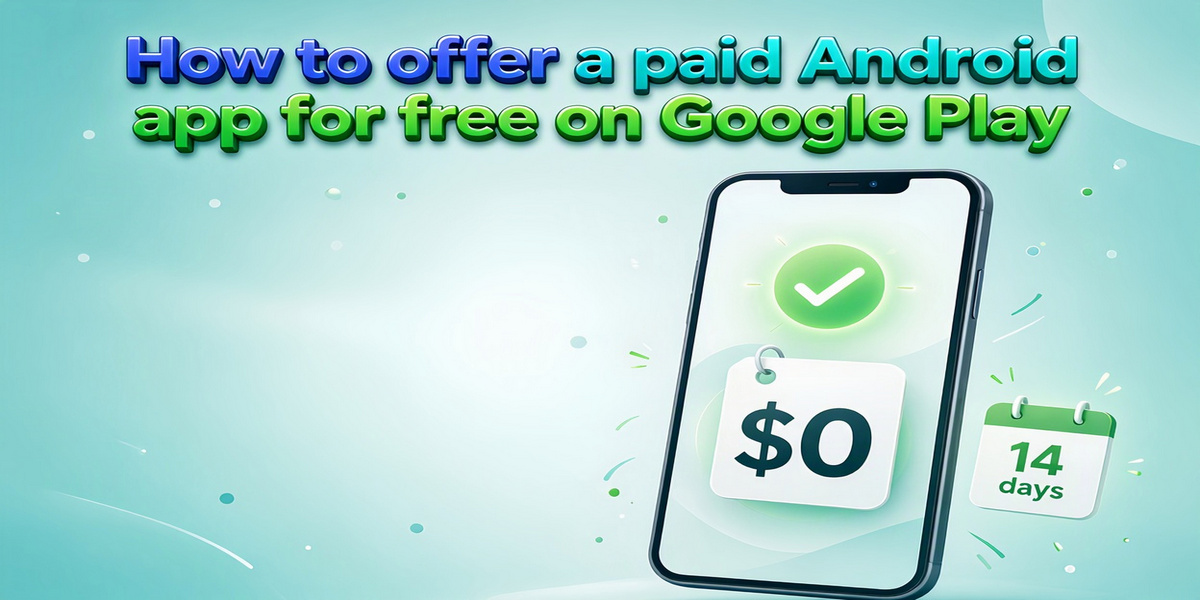
Short answer: You can give your paid Android app away for free in two safe ways. You can run a $0 sale for up to 14 days. Or you can send single-use promo codes to named people. Do not click “Make your app free.” That button is permanent. Google will not let you charge for the app again under the same package name.
You may need this when you run a closed test. Google asks new developers to test with at least 12 people for 14 days. Those testers cannot install a paid app unless they pay. This guide shows you how to fix that. It is part of our Google Play closed testing guide.
Here is what you will learn:
The three ways to offer a paid app for free
How to set up a $0 sale, step by step
How promo codes work
How to run a 14-day closed test with a paid app
Which mistakes to avoid
What are your options?
Google Play gives you three ways to offer a paid app for free. Each one fits a different goal.
Option | Who gets the app free | Main limits | Can you undo it? |
|---|---|---|---|
$0 sale | Everyone | 1 to 14 days; 30-day wait before the next sale | Yes. The price returns by itself. |
Promo codes | People you choose | 500 codes per quarter; each code works once | Yes. The app stays paid. |
Make your app free | Everyone, forever | Applies to all countries and all future updates | No. |
Pick the $0 sale when you want everyone to download the app for free. Pick promo codes when only certain people should get it. Pick “Make your app free” only when you want a free app for good.
Before you start
Take five minutes to check these things first. A small mistake can cost you weeks.
Publish your app. Google does not allow a sale on a draft app. Your app must pass review first.
Check your last sale date. You must wait 30 days after one sale ends before you start another.
Pick your audience. Do you want everyone to get the app free? Or only your testers? Your answer decides the option.
Choose your dates. A sale runs from 1 to 14 days. For a closed test, match the sale to your 14 test days.
Keep your base price. Leave the main price alone. You will work only in the Sales tab.
How to create a $0 sale
A $0 sale is the safest way to offer a paid app for free. The price goes back to normal on the end date. Follow these steps.
Open the Play Console.
Go to Monetize with Play > Products > App pricing.
Open the Sales tab.
Click Create sale.
Type a name for the sale. Only you can see this name.
Pick a start date and an end date.
Set the sale price to $0.
Save the sale.
A $0 sale applies in every country Google Play supports. You do not need to pick each country yourself.
Stay inside the Sales tab. Do not change the base price on the main pricing page. If you set that price to $0, you do not start a sale. You make the app free for good.
Start the sale at least one day early. The new price needs a few hours to reach every country. If you plan, testers who join on day one will see the free price.
The start date and price are locked once the sale is live. You can only stop or resume it. Check your dates twice before you click Save.
Rules for Google Play sales
Google checks every sale against a set of rules. Learn them before you plan your dates.
Paid apps only. You cannot run a sale on subscriptions or in-app items.
1 to 14 days. A sale lasts at least one day and at most 14 days.
30-day wait. After a sale ends, you must wait 30 days before the next sale on the same app. One full cycle takes about 44 days.
No edits after launch. You cannot change the start date or the price of a live sale.
Buyer numbers drop. Google does not count $0 sales as purchases. Your buyer reports may dip while installs go up. Judge the sale by installs and by how long people keep the app.
Europe and the UK. In many countries, Google Play does not show the old price crossed out. Say “free for a limited time” in your own posts and emails.
The 30-day wait causes the most trouble. Say your sale ends on November 14. You cannot start another sale until mid-December. If you stop a sale early, Google may still count it toward the wait. So plan one sale at a time, and plan it well.
How to use promo codes
Promo codes let you give your app to named people. Everyone else still pays. Use them for beta testers, reviewers, and friends.
Here is how the codes work:
You can make up to 500 codes per calendar quarter.
Other one-time product promos share that same limit.
Unused codes do not carry over to the next quarter.
Each code works only once.
You do not need to write any code in your app.
To make codes, open the Play Console and go to Grow > Store presence > Promo codes. Pick your app. Choose how many codes you want. Then download the list.
Share each code as a link. Use this format:
https://play.google.com/redeem?code=YOUR_PROMO_CODE
When a tester taps the link on an Android phone, the Play Store opens with the code already filled in. The tester does not need to copy or paste anything.
Closed testers still need to join your test with the opt-in link. The code pays for the app. It does not replace the opt-in step.
Why you should never click “Make your app free”
On the pricing page, you will see a button called Make your app free. Do not use it as a giveaway tool.
Google says that once an app is offered for free, it cannot become paid again. To charge later, you must publish a new app with a new package name. A new app means you lose your downloads, your reviews, and your search ranking.
There is no undo button. Support cannot reverse the change.
Use this button only when you decide to give the app away forever. For any short promotion, use a $0 sale or promo codes.
Which option fits a 14-day closed test?
Google asks personal developer accounts created after November 13, 2023 to run a closed test before they can apply for production access. You need at least 12 testers who stay opted in for 14 days in a row. Our guide to the Google Play 12 testers requirement explains every rule.
A paid app adds one more problem. Testers see the full price when they open your test link. License testing does not fix this. It only lets chosen accounts test in-app purchases without paying. It does not remove the price of the app itself.
You have two good choices.
Choice 1: Run a 14-day $0 sale. Match the sale to your test window. All testers install the app for free. The price returns when the sale ends. Start the sale one day before you invite testers. Set the dates with care, because you cannot edit a live sale.
Choice 2: Send promo codes. Make 20 to 30 codes and send each tester a link. The app stays paid for the public. This works well when you do not want a free period for everyone.
Do you still need testers? Read our guide to the best Google Play closed testing services. Then learn how to evaluate a closed testing provider. Our affordable 12-tester service can also fill your test. If you want help with the Play Console setup, read about Google Play Console testing assistance.
What to do after the sale
When your sale ends, Google restores the original price on its own. You do not need to do anything.
Then check your results. Look at installs, daily active users, and how many people still use the app after 7 and 14 days. Do not rely on buyer counts. Those numbers dip during a $0 sale.
If your closed test is done, apply for production access. Then plan your next promotion. Remember the 30-day wait.
Common mistakes
Clicking “Make your app free” for a short giveaway.
Starting a second sale less than 30 days after the first one.
Thinking license testing makes the app free for testers.
Starting the sale on the same day you invite testers.
Using all 500 promo codes on one-time product promos.
Did your test not count? Read why closed testing fails. Did Google refuse your request? See what to do after a production access rejection. Did you build your app with an AI tool? Read how to put a vibe-coded app on Google Play.
Frequently asked questions
Can I make my paid app free for a few days and charge again later? Yes. Run a $0 sale in the Sales tab. The “Make your app free” button is the one you must avoid.
How long can a Google Play sale last? A sale lasts from 1 to 14 days. You must wait 30 days before the next sale on the same app.
Do I need to write code to use promo codes? No. Paid-app promo codes work through the Play Store. You write nothing in your app.
Do $0 sales count as purchases? No. Your buyer numbers may drop while installs rise.
Can I change the price while a sale is running? No. You can only stop or resume the sale.
How do I let closed testers install a paid app for free? Run a 14-day $0 sale, or send each tester a single-use promo code.
Quick summary
Use a $0 sale when you want everyone to get the app free for a short time. Use promo codes when only named people should get it. Never use “Make your app free” for a short promotion.
Plan your dates before you save. Start the sale a day early. Remember the 30-day wait after the sale ends. For a closed test, match the sale to your 14 test days, and tell your testers how to install.
These steps keep your price, your reviews, and your ranking safe. They also give your testers a smooth start.
Sources
Google Play Console Help: Create sales for paid apps
Google Play Console Help: Set up your app’s prices
Google Play Console Help: Create promotions
Android Developers: Promo codes